Summary
How to navigate the different tabs available in eServices.
Environment
- eServices
- Self-Service
- Banner
Solution
 NOTE: The screenshots below may not always reflect current offerings, as the system is updated frequently. If you notice something out of date, please leave a comment!
All Users
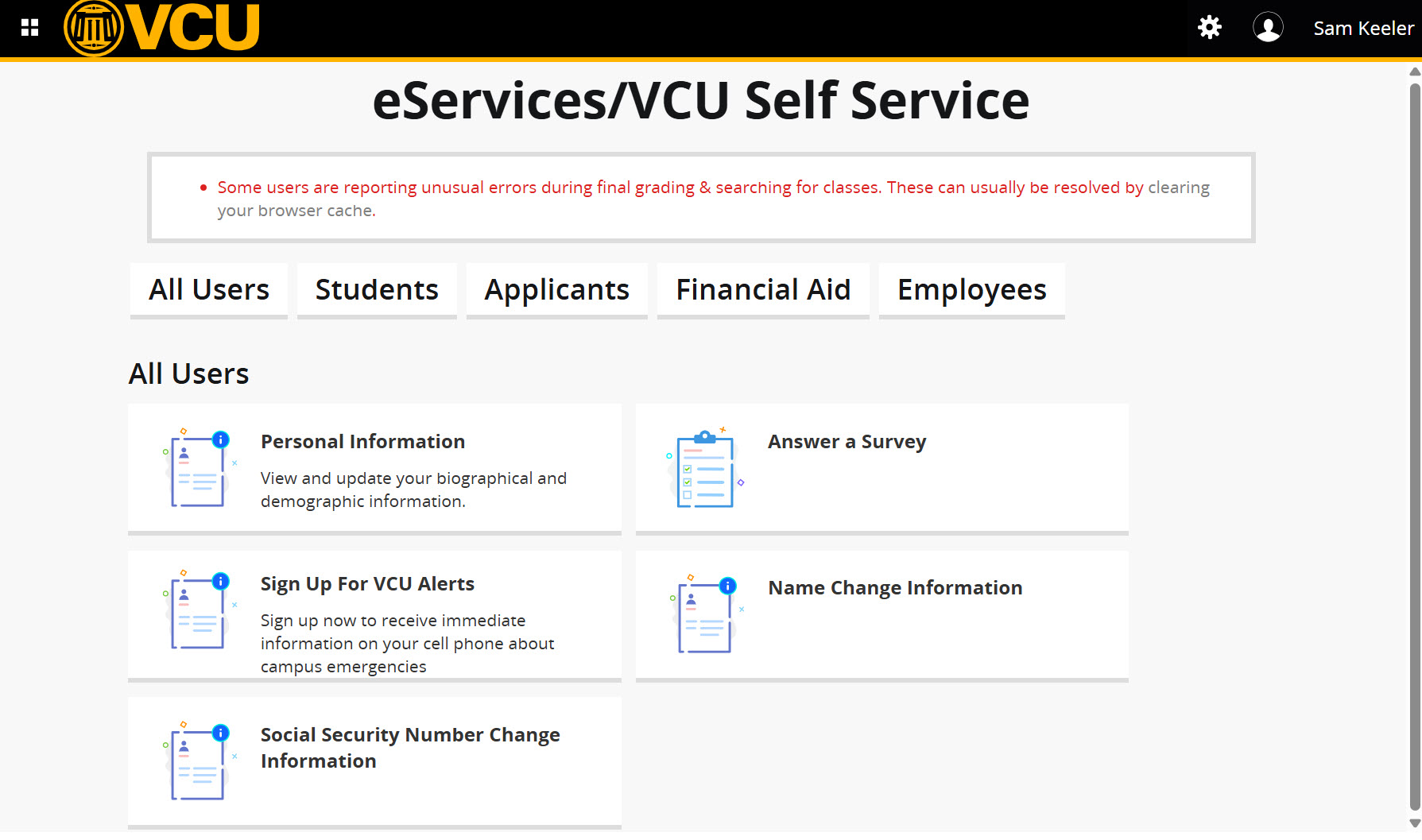
Upon login to eServices with their eID and password, users view a screen such as the following. Depending on their role at VCU, the different sections may vary.
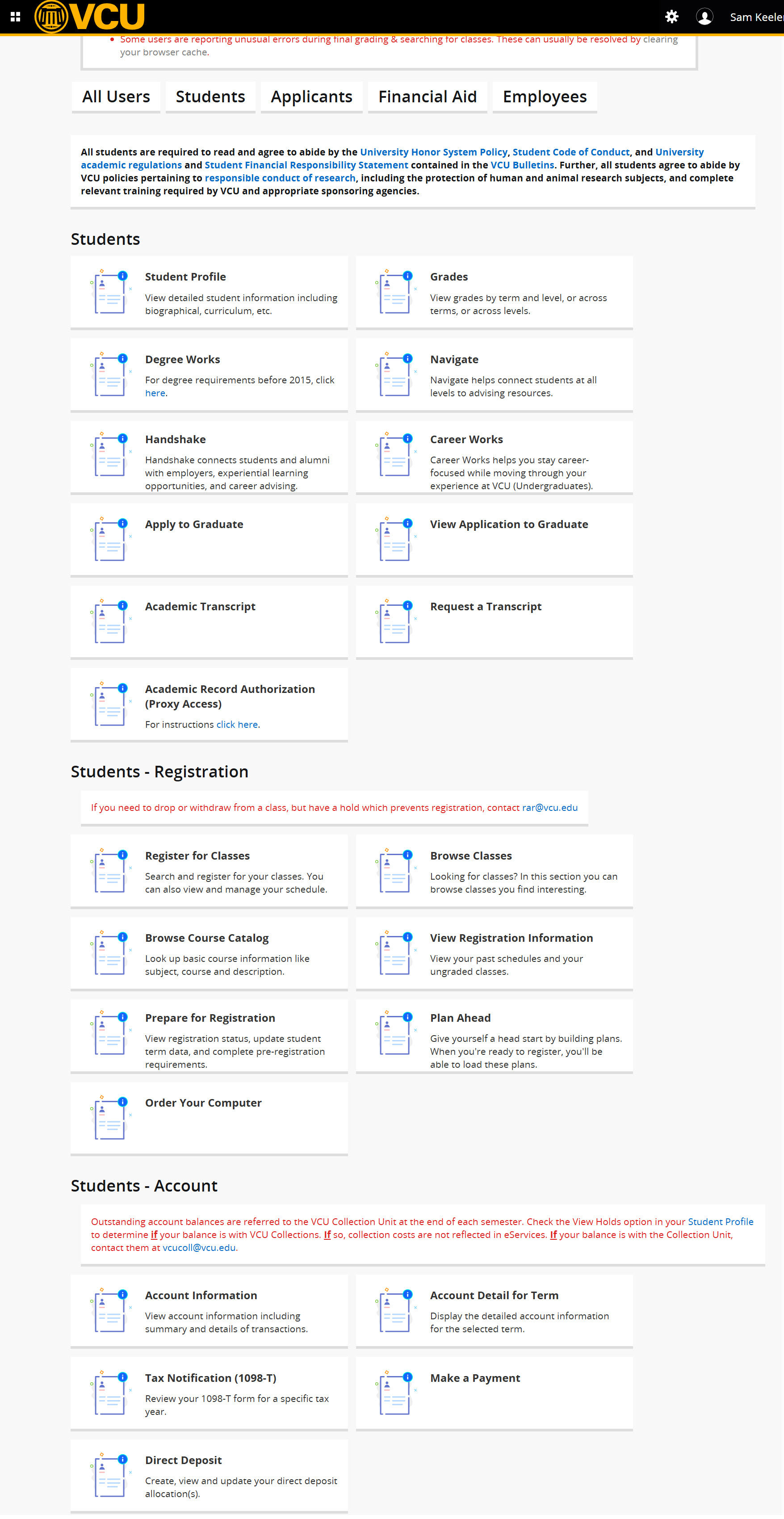
Students
Students register for classes, view their student records and transcripts, view their student account information, and use the DegreeWorks tool by clicking on the "Student" tab (see below). Here is a list of all available services:
- View class schedules
- Obtain electronic forms (1098-T)
- Register for classes
- Process and view financial aid
- Pay deposits:
- Tuition
- Enrollment
- View academic history
- Order transcripts
- Unofficial transcripts can be printed via PDF
- Official transcript requests will be redirected to the National Student Clearinghouse
- Order textbooks
- Use the Degree Works academic progress system
- Use the College Scheduler registration shopping cart system
- Update personal Information
- Update Name of Use
Employees
The "Employee" tab allows employees to view their benefits and deductions, pay information, electronic forms, leave balances, etc. Here is a list of available services:
- Access employee information
- Update personal information
- Update Name of Use
- Payroll
- Check leave balances
- Obtain electronic forms (W-2s)
- Former employees must contact HR to access their W-2s and other information


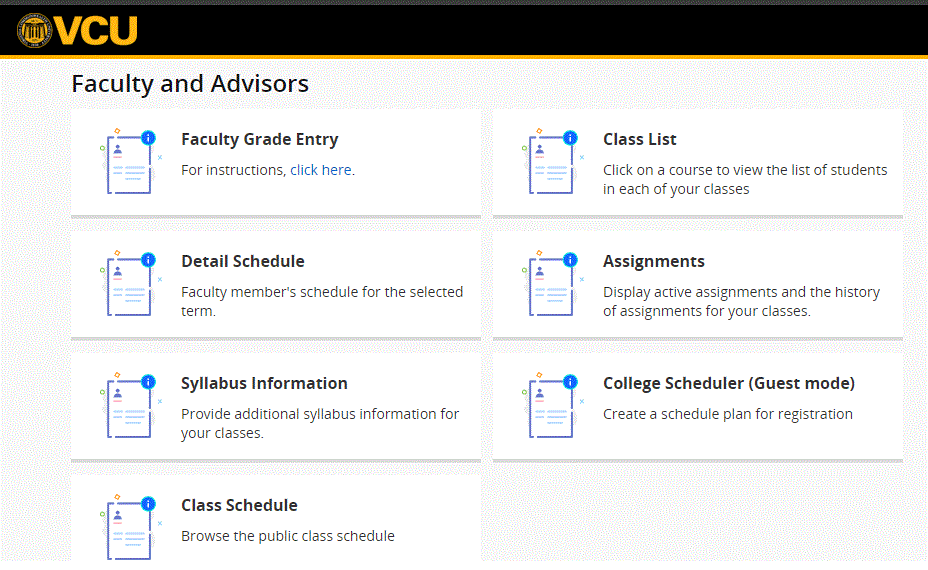
Faculty
Here is a list of additional services available only to Faculty:
- View class rosters (faculty)
- Submit midterm & final grades (faculty)
- Upload syllabi (faculty)