

Summary
This article outlines the steps needed for an individual to add a new phone to their DUO account.
Environment
eid.vcu.edu
DUO
login.vcu.edu
Solution
This article covers the steps needed to add a new phone for your VCU managed DUO account. Please note these instructions presume that you have a method of logging into https://eid.vcu.edu (i.e., your VCU eID credentials and a valid method to login to DUO)
- Log into https://eid.vcu.edu using your existing credentials.
- Under My Profile, click the Manage Security tab

- Scroll to the bottom and click ADD NEW DEVICE.

- Choose Mobile Phone, and click Next.

- Enter a Device Name (This is a friendly name you can use to recognize your device).

- At the next screen, select your country code and enter your phone number.

- Choose the type of phone you are setting up (e.g., Android, iPhone, or Other)
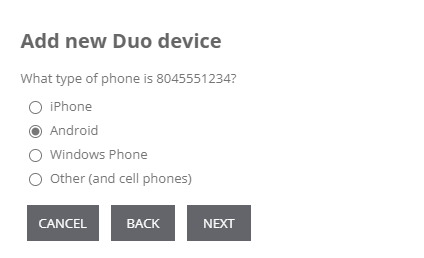
- Download DUO Mobile from your phone's app store as instructed. Once downloaded, click on I HAVE DUO MOBILE.

- Open the DUO Mobile app on your phone, tap the "+" button, and point your phone's camera at the QR code shown on the screen to scan it and complete the registration.
